
ExifTool: The Most Powerful Images Program You've Never Heard Of
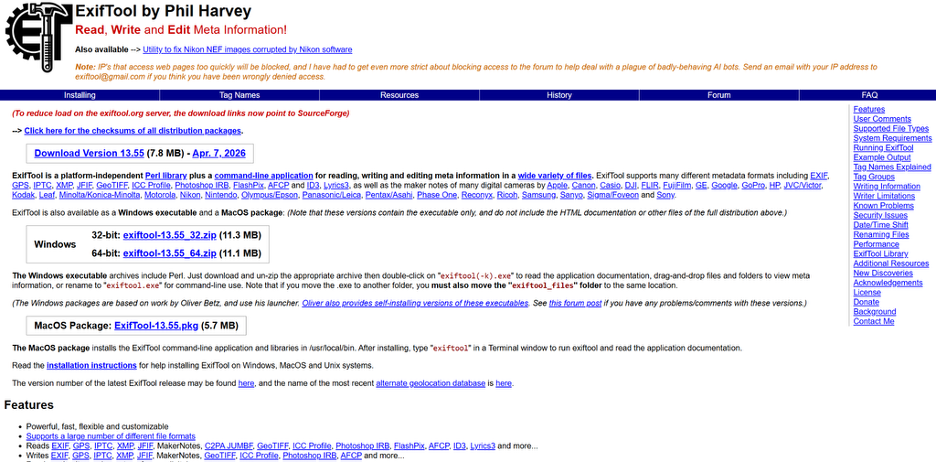
There's a category of software that most people never come across. It is not just because of obscurity, but because it works so quietly in the background, you'll only ever discover it when you need it. ExifTool belongs firmly in that category. This tool has no graphical interface and isn't made for mass appeal, but it is a mainstay in institutions like NASA and the Library of Congress. It shows up in forensic investigations and underpins photographers' workflows. Even more unusual is that it isn't the product of a large team or a venture-backed startup. It has been built and maintained for over 20 years by a single developer: Phil Harvey. Despite that, or maybe because of it, it has become one of the most capable tools when dealing with metadata.
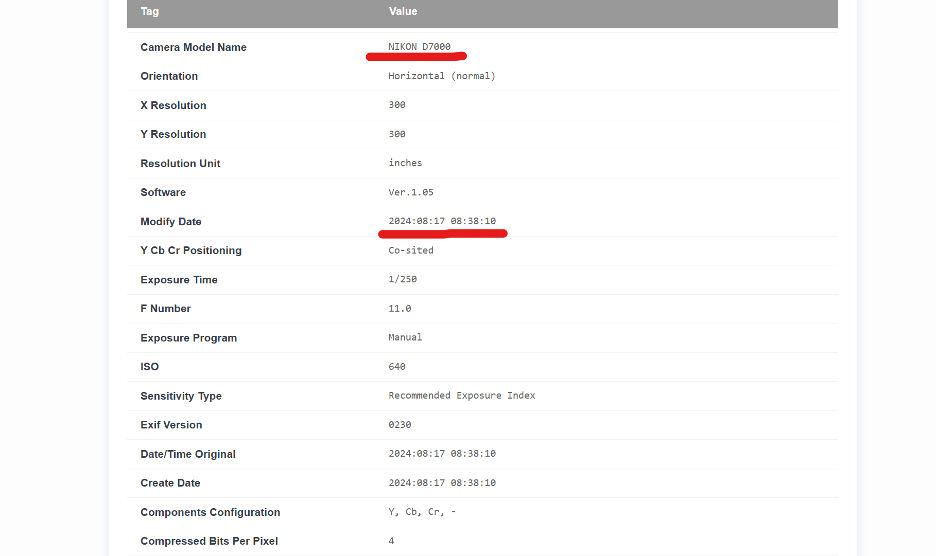
If you would rather not install a command-line tool for occasional inspection, a browser-based viewer like EXIF Viewer can read most of the same fields without any setup.
What Does ExifTool Do?
Every digital file carries more information than you can immediately see. A photograph, for instance, also records how the image came to be, including the camera body, lens, exposure settings, time and date, location, etc. If the file has been edited, there may also be a history of those edits, the software used, and the details of how it was processed (in some cases, chronologically).
This information is what's known as metadata. It is written automatically by the devices or software that interact with the image. Most of it is never seen, and most tools only show a small portion of it. ExifTool goes a step further. It reads everything it can find, across a very large number of file formats, and present it in a form that you can actually use. More importantly, it allows you to modify that information with the same level of precision. At first glance, that sounds convenient. In practice, it offers control over parts of your file that are usually hidden.
Where To Start?
The simplest way to understand what ExifTool does is to run it on a file.
☞ exiftool photo.jpg
What you get back is a complete list of the metadata contained in that image. It can be a long list, which is where you start narrowing the scope.
☞ exiftool -Model -LensModel -ExposureTime -FNumber -ISO photo.jpg
Now you are asking for specific fields: camera, lens, shutter speed, aperture, ISO, etc. The output becomes more focused and immediately useful. With a small change in syntax, you can move from reading to modifying.
☞ exiftool -all= photo.jpg
This command removes all metadata from the file. You can quickly go from inspecting to editing, and that is where the tool becomes genuinely interesting.
Smartphones and Modern Formats
For a long time, metadata was mostly something photographers, activists, and investigators cared about. Things are changing as smartphones become the new default camera, including for serious shoots. They also embed precise location data by default and contain enough information to identify the device used and where it was used. Sharing a photo can, in some cases, reveal more than intended.
At the same time, metadata has become more useful in the opposite direction. It is now used in systems that analyze images at scale to organize large libraries, verify authenticity, or prepare datasets for machine learning. This raises privacy concerns, but it also helps establish origin and context.
File formats have evolved as well. HEIC, WebP, and AVIF are now common across devices and platforms. They come with their own version of metadata. ExifTool has kept up with these changes, often supporting new formats and tags before they are widely available elsewhere. Metadata is a core part of how files are understood, trusted, and processed.
Installation
ExifTool is a straightforward install on most systems. On macOS, use Homebrew:
☞ brew install exiftool
On Debian or Ubuntu-based systems:
☞ sudo apt install libimage-exiftool-perl
On Windows, a standalone executable is available and can be run without a formal installation process once it's added to your system path. There is very little you need to do after that. Once it is on your terminal, you can start using it immediately.
Reading and Writing Metadata
The basic pattern is consistent. You are required to specify the tags you want to retrieve, followed by the file. If you want to extract GPS data, for instance, you would write:
☞ exiftool -GPSLatitude -GPSLongitude photo.jpg
If you need those values in a format suitable for mapping tools:
☞ exiftool -n -GPSLatitude -GPSLongitude photo.jpg
In this case, the "n" tells the tool to return raw numeric values, which are easier to use in a programming sense. If you want to remove GPS data and leave everything else intact:
☞ exiftool -gps:all= photo.jpg
To copy the metadata from one file to another:
☞ exiftool -TagsFromFile original.jpg edited.jpg
These are small commands, but they address common problems directly, including preserving information across edits, controlling what you share, and extracting specific details quickly.
Working at Scale
Where ExifTool becomes particularly useful is when it's used for large-scale operations. The same commands can be applied to entire galleries.
☞ exiftool -r -gps:all= /path/to/photos/
The "-r" flag tells ExifTool to recurse into subdirectories. By default, ExifTool creates a _original backup copy of any file it modifies, which is useful when working with large collections.

If you explicitly want to overwrite files without creating backups, you can use the command:
☞ exiftool -overwrite_original -all= *.jpg
With this choice, you trade safety for speed and storage space. It is useful in controlled situations. Using it casually could be catastrophic for collections without backups.
Applying Conditions
ExifTool also allows you to limit operations to files that meet specific criteria.
☞ exiftool -if '$GPSLatitude' -gps:all= -r /path/to/photos/
In this example, only files that actually contain GPS data are modified. Others are left unchanged. The conditions can be more detailed and reference any available metadata field. This makes it possible to create a fairly precise workflow without writing separate scripts. At that point, the tool begins to behave less like a simple utility and more like a specialized language for working with image files.
Depth and Edge Cases
One of the reasons ExifTool is so widely used is that it can handle details that many other tools ignore. Depending on the file and the device that created it, you could get back thousands of data points, including:
- Shutter count
- Lens serial numbers
- Focus distance
- Flash status
- Internal processing details
- Editing histories in exported files
Most of these are only relevant in specific situations, but when those situations arise, having access to this level of detail is invaluable.
When ExifTool Is the Right Tool
ExifTool has no interface to learn, no ecosystem to buy into, and no particular effort to make itself known. It is simply a way to inspect and control information that is already embedded in your files. You notice what devices record, what software changes, and can quickly surface the full history of a file.
Learning a handful of the commands above is enough to make ExifTool part of a working pipeline for metadata inspection, GPS stripping, and batch edits.