
PDF Metadata: The Hidden Data In Your Documents
There is a recurring category of news story that goes like this: a government agency or law firm releases a redacted PDF, and within hours readers discover that some "redacted" sections are still readable. In many cases the black rectangles are visible, but the original text is also still present underneath. Selecting the page, copying, and pasting into a plain-text editor reveals the hidden content.
This is not a PDF bug. It is a consequence of how PDFs actually work, and of a common misunderstanding about what drawing a black rectangle in a PDF editor does and does not do.
A PDF is Not a Piece of Paper
Most users think of a PDF as a fixed, flat reproduction of a printed page. In reality, a PDF is a structured data container with layers, embedded objects, and multiple metadata blocks. The text you see on screen is typically stored as text, not as an image, which is why search and copy-paste work in the first place.
A PDF carries two distinct types of metadata, plus several other categories of embedded content that are not visible in a viewer.
The first layer is called the Info Dictionary. It's been in the PDF spec since version 1.0 and holds the basics, including:
- Title
- Author
- Subject
- Keywords
- Creator (The app that built the source document)
- Producer (The software that rendered it as a PDF)
- Creation and modification timestamp...etc.
The second layer is the XMP (the Extensible Metadata Platform) , the same framework photographers use for image files. XMP in a PDF can carry everything in the Info Dictionary, plus Dublin Core fields, rights management data, custom schemas, and arbitrary key-value pairs left by various apps.
Since PDF 2.0, XMP has been the authoritative source, and the Info Dictionary is kept only for backward compatibility.
Then, there's everything else, including:
- Embedded fonts that fingerprint your operating system and software
- File attachments, some of them accidental
- Document-level JavaScript (PDFs can execute JavaScript, and it is as alarming as it sounds)
- Hidden layers with content toggled invisible but still present
- Form field data from forms that were filled, then cleared
- Annotation data, including "deleted" comments that were not fully purged
There is also incremental save history. The PDF format supports a structure where each edit appends new data to the end of the file instead of rewriting it. After several rounds of edits, a PDF may contain recoverable intermediate states of the document along with the current version.
Every PDF Generator Tells a Different Story
The metadata footprint of a PDF is not fixed and varies dramatically depending on what created it. A careful reader can glean a lot about you before they even get to reading the document.
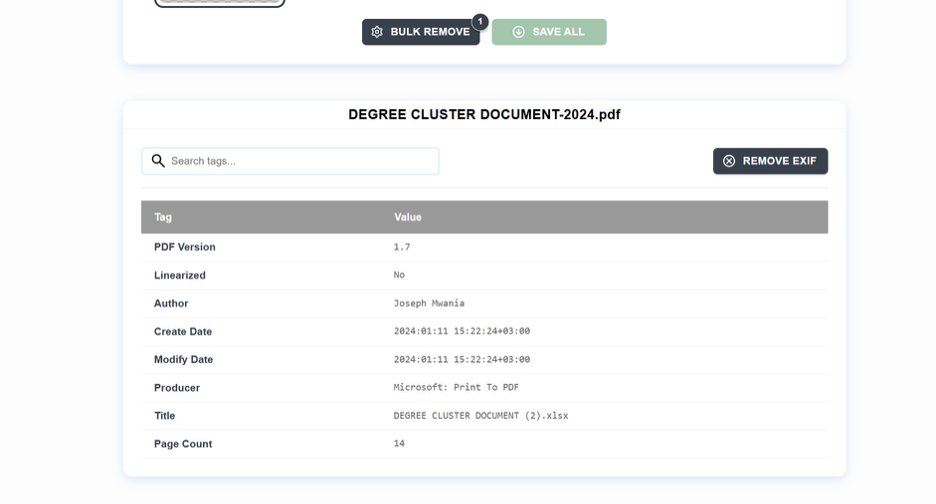
Microsoft Word
Word writes the full name configured in your Microsoft Account into the Author field. The Creator and Producer fields identify the software as Microsoft Word with a precise version number. If you used Track Changes and did not accept them all before exporting, residual revision data can survive in the PDF.
LaTeX
LaTeX output is relatively lean by default, but the Creator field still identifies your TeX distribution and engine version, and the Producer string fingerprints your toolchain even if other fields are blank.
Chrome's Print to PDF
Chrome's Print to PDF does not populate the Author field, which makes it more anonymous than Word, but it still exposes the Chromium library version in the Producer string.
Adobe Acrobat
Adobe Acrobat populates the full set of fields: Author, Title, Subject, Keywords, XMP, PDF/A conformance data where applicable, and the Acrobat version. If the source was a scanned document processed through OCR, Acrobat embeds the recognized text as a hidden layer beneath the scanned image. This is the same mechanism that lets copy-paste recover text from visually "redacted" scans.
Before anyone reads the text of your document, the metadata can already disclose the software and version you used, your name, your organization, and the date of the work.
The Privacy Problem
Since most people think of PDFs as finished, professional documents, they miss the inherent risks. Consider what a routine business PDF actually contains: your name, your software stack and exact version numbers (useful for anyone probing known vulnerabilities), the precise timestamps of creation and modification (including timezone offset), and the number of revisions, among other details.
Sometimes, they may be able to see internal file paths like:
☞ C:\Users\jthompson\Documents\ClientName\Litigation\Draft_Responses\CONFIDENTIAL\response_v14_FINAL_FINAL.pdf
A path like that reveals the client name, the matter the document relates to, and the fact that the author has been through many revisions before arriving at the version being sent out.
For an individual sending a resume, the metadata may reveal that the document was created months earlier and only updated recently, which can conflict with claims about how long someone has been actively searching. For a company sending a proposal, the revision count and modification timestamps can hint at how much internal debate preceded the final terms.
None of this is visible in the rendered document, but it is straightforward to read if someone looks.
When Metadata Becomes a Legal Issue
The legal profession has been learning this lesson the hard way for two decades and continues to learn.
There is an entire category of discovery disasters built around attorneys finding opposing counsel's strategy notes, draft language, and internal comments embedded in PDFs that were supposed to be clean and final deliverables.
Tracked changes, partner comments discussing negotiation, revision histories; all these can show up.

In one frequently-cited case, a law firm sent a settlement demand as a PDF. The other side checked the metadata and found it had been through 30+ revisions, with timestamps clustered around last-minute edits.
The pattern revealed lots of frantic revisions, late into the process. That can be read as desperation, giving the other side leverage they wouldn't otherwise have.
There is a known, documented, well-described problem here, and for various reasons, organizations keep falling into it anyway.
What Redaction Actually Means
Drawing a black rectangle over text in Word and then exporting to PDF is NOT redaction. The text is in the PDF's content stream and can be extracted. Applying a black highlight over text in a PDF viewer is NOT redaction either. Highlights are annotation layers that leave the text underneath untouched.
Taking a screenshot of a PDF page, painting over sections in an image editor, and saving it as a new PDF is unreliable. If the new PDF still contains the original page as a layer beneath the painted image, the text is still there.
Real redaction involves removing data from the PDF's content stream, not obscuring it visually. Adobe Acrobat Pro has a dedicated Redact tool that does this correctly by replacing content with black fill at the content stream level.
If you are redacting anything that matters, verify the result to avoid the disasters that could ensue.
The Archival Irony
There is a wrinkle worth understanding, especially for professionals in regulated environments. If you are creating archival PDFs (PDF/A format, as required by many government agencies, courts, and records management systems), you must include specific metadata. PDF/A mandates XMP metadata with version and conformance level identification, and many profiles require additional fields for validation.
While privacy best practices may say stripping metadata is the way to go, archival requirements require it. When working in regulated industries, familiarize yourself with the specific rules for each document type to avoid PDF/A violations and downstream document rejections.
The XMP Connection
If you've read other posts on this site, you know XMP from photography. It's the metadata framework that stores GPS coordinates, copyright notices, and edit history in image files. This same standard lives in PDF files, since it was designed by Adobe to be a universal container.
An EXIF Viewer or the powerful ExifTool can read and write XMPs in PDFs in the same way they do for images. If you've already built a workflow for stripping metadata from photos before sharing, you can extend this to documents for a more complete approach.
Inspect Before Sending, Redact Before Publishing
Before sending a PDF outside your organization, inspect what is actually in it. File -> Properties in most PDF readers shows the Info Dictionary fields. For the full picture, including XMP and object-level inspection, ExifTool is a reliable option. Strip anything that should not be there, and for organizations handling many documents, automate the sanitization step so nothing slips through.
For actual redaction, use a tool that removes content from the content stream (Adobe Acrobat Pro's Redact tool, or equivalent). Drawing a black rectangle on top of text is not redaction.