
How To Strip EXIF Data on Every Platform (2026 Edition)
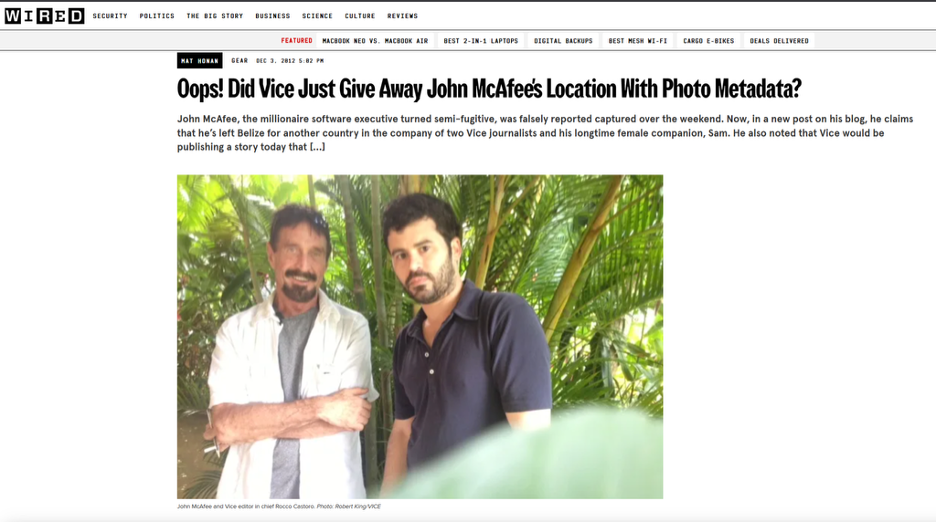
In 2012, antivirus founder and then fugitive John McAfee was interviewed by Vice. The magazine published a photo of him that still carried GPS coordinates in its EXIF data, and those coordinates pointed to his location in Guatemala. It remains one of the most widely cited examples of an EXIF leak with real-world consequences.
There are documented cases of stalkers and opportunistic burglars using location data in social media posts to map out the routines of the people who posted them.
When you send a photo of an item listed on Craigslist or Facebook Marketplace, the file can contain GPS coordinates, the phone model, and precise timestamps. Stripping this data before sharing takes a few minutes and can be automated.
What You're Actually Removing
Before removing metadata, it helps to know what is actually in there. EXIF (Exchangeable Image File Format) was designed in the late 1990s to help photographers recall their camera settings, but it now also serves as a standard data source for OSINT (Open Source Intelligence) work.
The dossier includes details like:
- Geotags (latitude and longitude, often accurate to within three to five meters)
- Temporal data (the exact moment the shutter clicked, including timezone offset)
- Hardware fingerprints (camera model, make, and even unique sensor serial numbers)
- Computational metadata (including AI-enhancement tags, depth-map data in Portrait Modes, and even biometric lighting profiles)
There is a "structural" exception you should be aware of. When we talk about removing metadata, we mean the descriptive tags. You cannot remove structural data such as pixel dimensions or color profiles without re-encoding the image.
Re-encoding (saving it as a new file) usually results in a slight loss of quality. For most users, though, stripping the descriptive EXIF tags is often the goal.
To check what kinds of tags your images have, check out EXIF Viewer to learn more.
Windows
Windows 11 has proven to be one of the easiest ways to remove metadata. Microsoft has kept its core tools consistent for years, and 2026 brings with it some automation for professional use.
The Right-Click Protocol:
- Right-click on your photo or a batch of them in File Explorer.
- Select Properties at the bottom of the menu.
- Navigate to the Details tab to view the data in its raw form.
- At the bottom, click on "Remove Properties and Personal Information".
- Choose "Create a copy with all possible properties removed".
This method works because Windows creates cleaned copies ready for posting, leaving the originals untouched with all your data for your archives and organization.
Microsoft PowerToys
If you have installed Microsoft PowerToys, you can automate the process. Under the "Image Resizer" utility, there is a toggle to "Remove metadata that doesn't affect rendering". You can simply right-click 50 images, resize them for the web, and remove all metadata with a single click. It is a fast and clean way to strip photos before upload.
macOS
Apple is a "privacy-first" company, and this ironically makes it hard to strip metadata in Preview, the default viewer. You can see the data, but Apple assumes that since it is there, you must want it there.
The Preview Filter:
- Open the image in Preview.
- Go to Tools -> Show Inspector (or hit Cmd+I).
- Click the small "i" icon in the circle, then the Exif tab. The data will show up here.
- To remove it, you have to export the file.
- In the Export dialog, ensure you save it as JPEG or PNG. In macOS 15 and 16, there is often a "Privacy" checkbox in the export options, which you should check.
You can simplify all this if you are comfortable using a command-line tool, specifically ExifTool. It is the most powerful option and can be run using Homebrew on Mac. A few simple commands take care of any stripping you require.

iPhone (iOS 19+)
By now, Apple has made metadata management part of the "Share Sheet", but it is still a "per-action" setting, not something you can set and forget for all images. If you aren't paying attention, you could accidentally leak.
Using the Share Sheet:
- Open the Photos app and select an image.
- Tap the Share button (the square with the arrow).
- Look for Options at the very top of the screen, next to the image thumbnail.
- Under the "Include" section, turn off Location.
- For maximum privacy, toggle off "All Photos Data". This will remove the edit history and "Depth" information that AI tools can use to reconstruct your environment.
☞ A Note About Live Photos: Live photos are a major vulnerability in forensics. They contain a few seconds of video and audio around the photo. If you don't strip the "All Photos Data" or turn off Live Photo before sharing, you could be sharing audio of yourself saying something private or a video clip showing a street sign out the window.
Android 16
Android's security has caught up significantly as Google now treats "Location" as a sensitive permission that can be revoked at the file level before you even share.
The Google Photos Method:
- Open a photo in Google Photos.
- Swipe up to reveal metadata, or click on the three dots menu if the swipe up action doesn't work for you.
- Tap Edit next to the location info and select "Remove Location".
The C2PA and Provenance Paradox
Stripping metadata can now get your content flagged. Yeah, it's a little counterintuitive. The rise of the C2PA (Content Credentials) standards has seen platforms like Instagram and X look to "Provenance Metadata" to prove that an image is not AI-generated. When you use the nuclear option to strip metadata, it also removes the Digital Signature that proves a human took it.
The strategy is now to selectively strip data such as GPS, serial numbers, timestamps, and other sensitive information, while keeping only what is required for Provenance. Tools like Adobe Content Authenticity now include a feature to "Remove Personal Info" while retaining authenticity data. If you strip it all, it could lead to a drop in your social media reach, as the platform algorithm could assume you are a bot and act to push your account lower in the rankings.
Strip Before Sharing, Not Before Archiving
Stripping metadata before sharing is a simple privacy hygiene step. The tools on every major operating system are now good enough that the process takes seconds once you know where to find them, and can be scripted for batches. The goal is not complete anonymity but to avoid unintentionally publishing the exact time and location of a photo you took at home.